
AI Agents Knowledge Store
Helping clients teach Concert’s AI with their own knowledge, and test it before it goes live
Overview
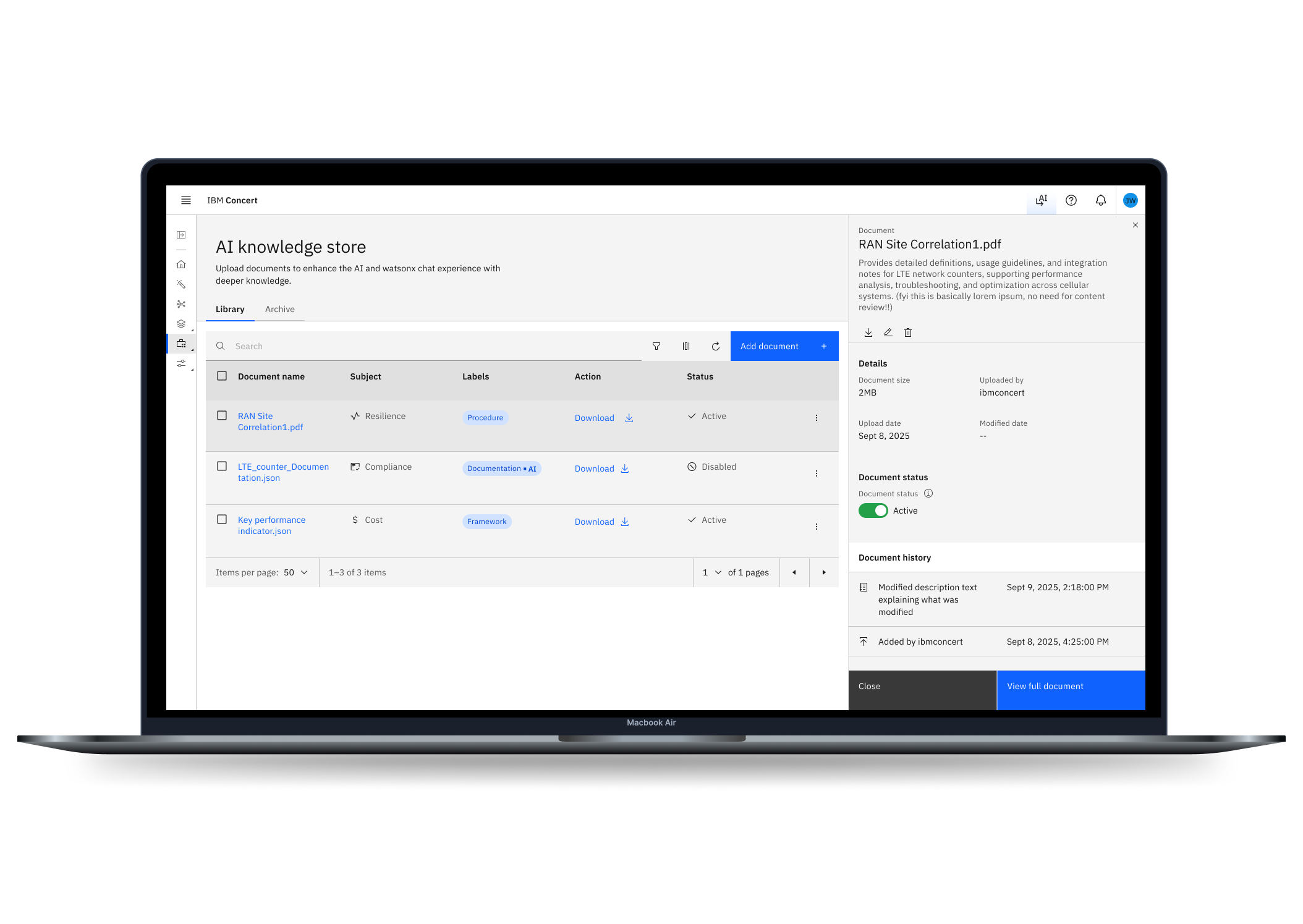
The AI Knowledge Store lets IBM Concert clients upload their own documents so the AI agent and watsonx ( IBM's enterprise-ready AI) chat can answer with their organization's knowledge. I led the UX design, and the feature is now live in the product.
IBM Concert is an IT automation platform that helps teams manage application risk, compliance, resilience, and cost. Out of the box, its AI agent only knows general information. Clients, especially in compliance, needed it to know their policies, procedures, and frameworks.
The feature covers the full lifecycle of a document:
Upload a file (.pdf, .json, or .txt, up to 32 MB) and tag it with a subject and labels
Test how the AI answers sample questions before and after adding the document, and pick the better response
Manage the library: view details and history, pause a document, archive it, or delete it
Company:
IBM|Product name: IBM ConcertTimeline:
~2 months, Design to deliverTools:
BOB (IBM Internal AI Prototyping tool)| FigmaMy Role
I was the UX design lead, responsible for the end-to-end experience from first concept to shipped product.
Defined the user flows for uploading, testing, and managing documents
Designed the library, upload wizard, response testing step, detail panel, and document viewer
Partnered with the AI product manager on scope and with backend and frontend developers on what the system could support
Applied and extended IBM Carbon patterns so the feature felt native to Concert
Supported the build through handoff, design QA, and iteration until launch
Team work
This was a tight collaboration between our team. Each group shaped the result.
AI product manager: Defined the problem, scope, and the "test before you commit" concept; aligned on how user choices feed back into the AI
Backend developers: Set file types, size limits, and how sample questions and responses are generated; shaped what status, archive, and history could track
Frontend developers: Built the wizard, comparison cards, table, and side panel in Carbon; refined interaction states through design QA
UX Researcher: Planned and ran usability testing with users, then turned findings into design changes
UX Writer: Shaped clear, plain-language copy for labels, instructions, and messages so non-technical admins understood each step
I kept everyone aligned through shared flows, regular design reviews, and early prototypes. When a constraint changed, such as what the backend could generate, we adjusted the design together instead of handing work back and forth.
The problem
Clients could not trust AI answers that ignored their own rules. A compliance team asking "Are my applications compliant?" needs an answer grounded in the regulations and internal policies they actually follow, not generic advice.
The obvious fix, "let users upload files," hid harder questions:
Blind uploads. Users had no way to know whether a document would make answers better, worse, or no different.
No control after upload. Once the AI learned from a document, there was no clear way to stop it. Outdated policies would keep shaping answers.
Messy libraries. As documents piled up, admins needed to find, sort, and audit them quickly.
Solutions
The core idea: let users see the AI's answer change before they commit a document. Upload becomes a test, not a leap of faith.
Users test a document before it goes live, then manage it anytime
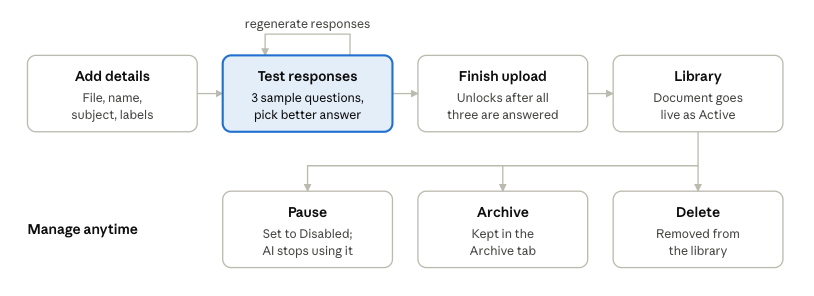
Testing sits between upload and go-live, so no document reaches the AI until the user has judged its effect.
Designing around the document lifecycle
I started by mapping the full life of a document, from the moment a user picks a file to the day it is retired. That map broke the experience into four parts, each answering a question users had:
How do I add a document? The upload wizard
Will it make the AI better? Testing responses before committing
How do I stay in control? The library and its actions
What changed, and who changed it? Details, history, and the full document
1. A two-step upload wizard
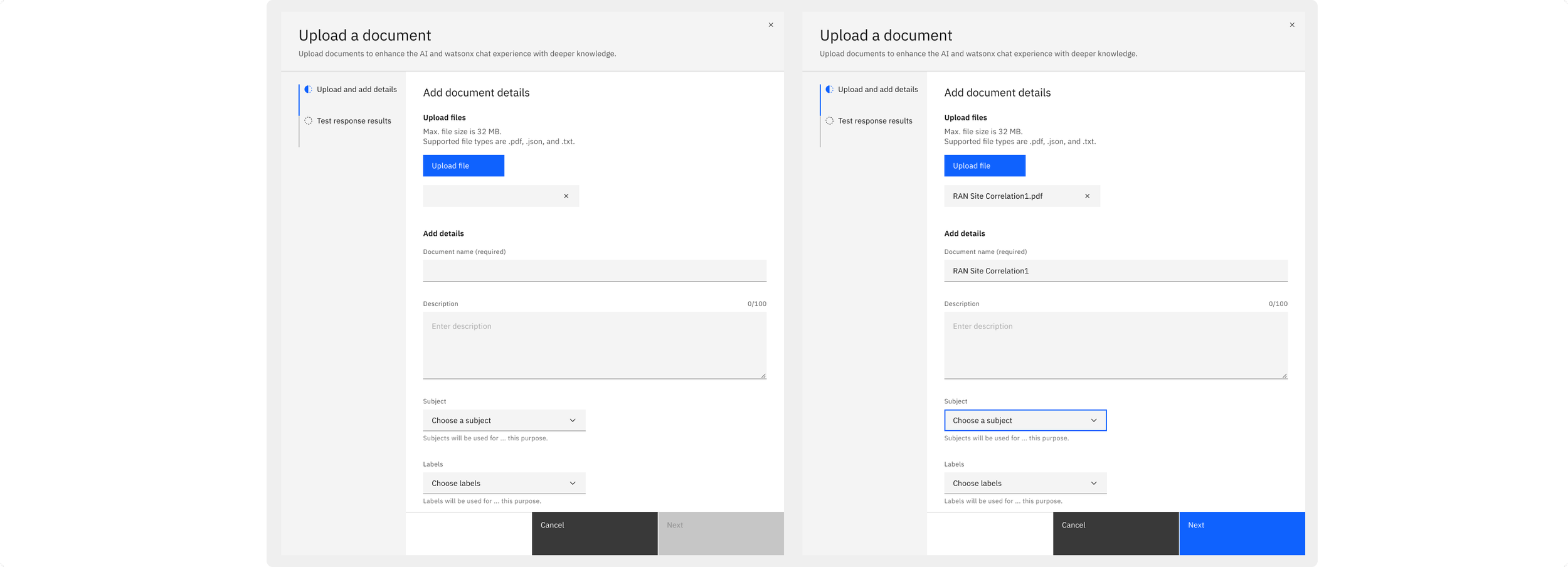
Uploading opens a side-by-side wizard with a progress tracker: Upload and add details, then Test response results.
File limits (32 MB; .pdf, .json, .txt) are stated up front, so errors are rare
The document name fills in from the file name and stays editable
Subject (such as Compliance, Resilience, Cost) and Labels (such as Procedure, Documentation, Framework) organize the library and give the AI context
Next stays disabled until a file and name are present
2. Test Before You Commit
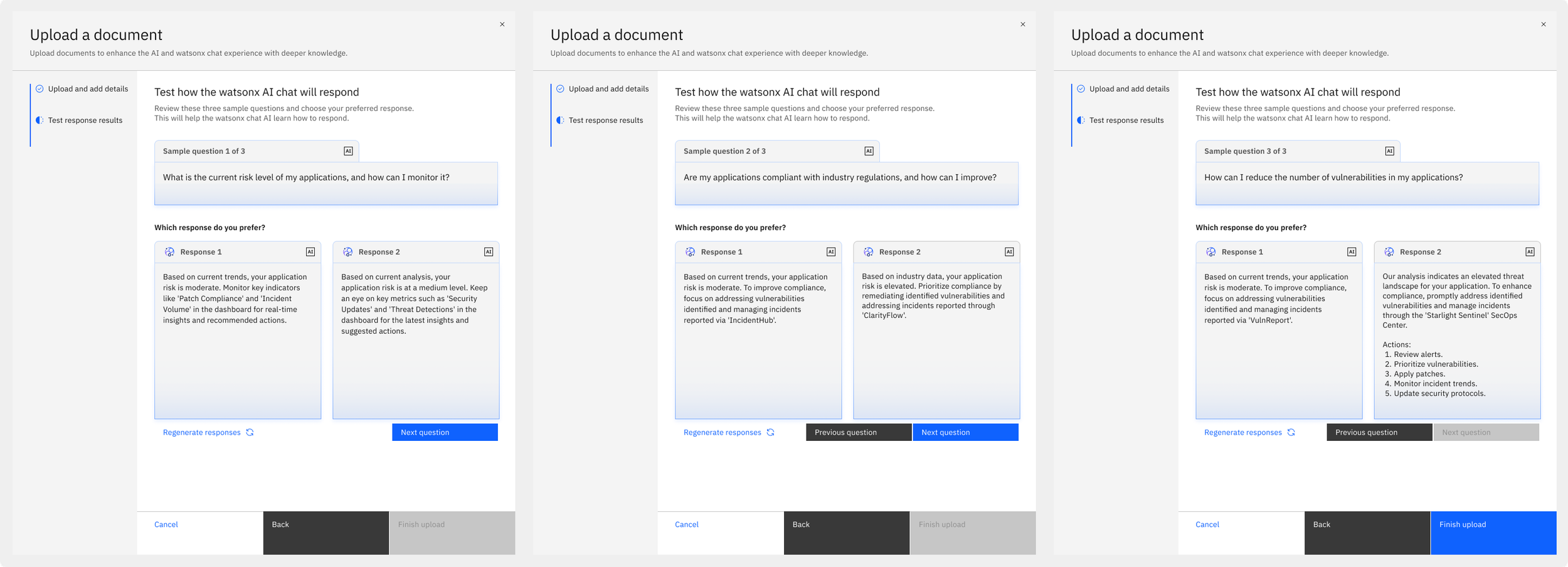
This is the heart of the design. The AI generates three sample questions related to the document, such as "Are my applications compliant with industry regulations, and how can I improve?" For each one, users see two answers side by side: the AI's current answer and its answer using the new document.
Users pick the response they prefer. A clear selected state confirms the choice.
Regenerate responses gives a fresh pair if neither looks right
Users step through questions 1 to 3, and Finish upload unlocks only after all three
Every choice also teaches the AI how to respond, so testing improves quality instead of just checking it
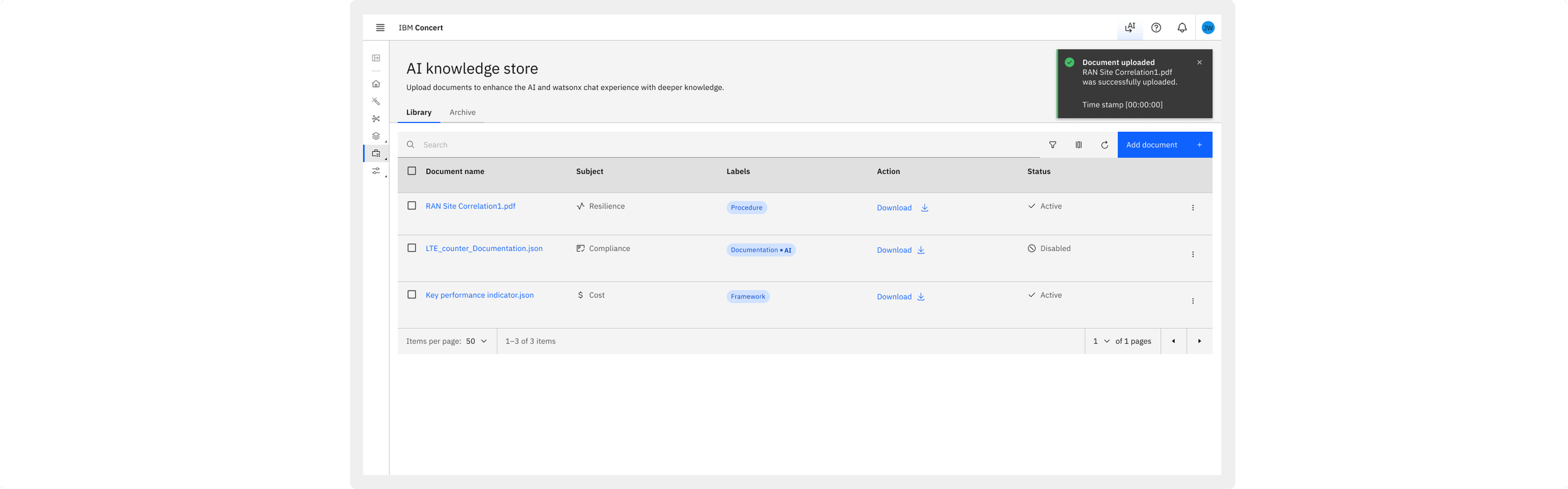
3. A library built for control
After upload, documents land in the AI knowledge store library with a success notification.
A table shows name, subject, labels, download, and status at a glance
Search, filter, column settings, and refresh help admins handle large libraries
Status (Active or Disabled) lets admins pause a document so the AI stops using it, without losing it
Archive moves documents out of the way while keeping them recoverable in the Archive tab
Bulk actions let admins delete, archive, or download many documents at once
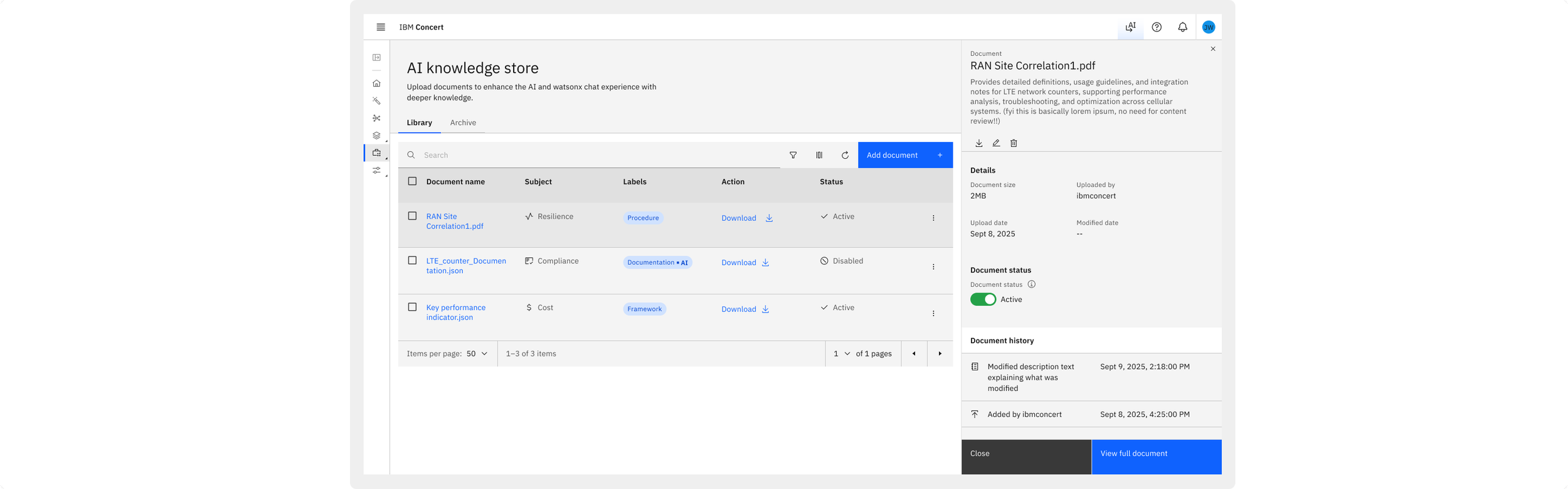
4. Details, history, and the full document
Selecting a document opens a side panel with its description, size, uploader, dates, an Active toggle, and a document history log of every change. View full document opens a viewer to read the content without downloading it.
The history log matters most for compliance: admins can show who added or changed a document, and when.
Final designs: the end-to-end flow
These are the final high-fidelity designs I handed off to the frontend and backend developers. The flow covers every step, from adding a document and testing its responses to managing it in the library. Each screen includes its key states, such as empty, selected, disabled, and success, so the team could build with confidence. I stayed involved after handoff to review builds and refine details until launch.

Upload file tearsheet - Light mode

Upload file tearsheet - Dark mode

I Knowledge store - Light mode

I Knowledge store - Dark mode
Challenges
Making AI behavior visible. How the AI uses a document is invisible. We had to show its effect in a way non-technical admins could judge in seconds.
Trust in a high-stakes domain. Compliance answers can affect audits. Every action needed to be clear and reversible where possible.
Technical constraints. File types, size limits, and how responses are generated were set by the backend. The design had to work within them and explain them plainly.
New AI patterns. Carbon had no ready-made pattern for comparing AI responses, so we had to design one that still felt consistent with the product.
Impact
The AI Knowledge Store shipped in IBM Concert and turned a generic AI assistant into one that can answer with each client's own knowledge.
Grounded answers for compliance. Clients can bring in their own regulations, procedures, and frameworks, so AI answers reflect the rules they actually follow.
Confidence before commitment. The response comparison lets users see a document's effect before it goes live, which reduces the risk of adding content that makes answers worse.
Ongoing control. Pause, archive, and delete give admins a way to retire outdated knowledge without losing it.
Audit readiness. Document history records who changed what and when.
A reusable AI pattern. The side-by-side response comparison gives the Concert team a model for other features where users need to judge AI output.
What I learned
The best way to build trust in AI is to show its behavior, not describe it. Letting users compare answers side by side made an invisible process concrete, and it gave them a real say in how the AI responds.